

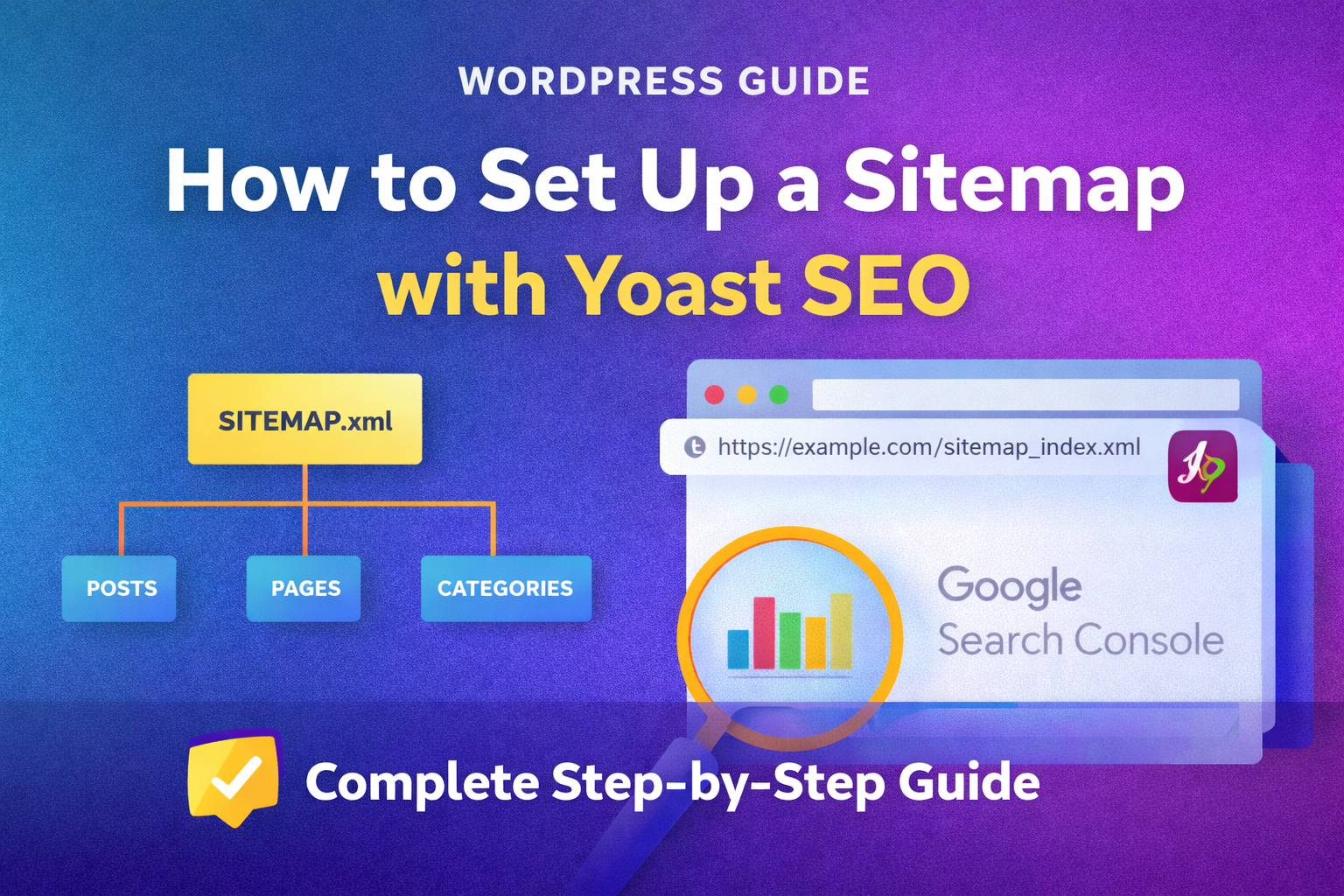
Have you ever wondered how Google finds and indexes all the pages on your website? That’s where a sitemap comes in – think of it as a roadmap that helps search engines navigate your site efficiently. In this comprehensive guide, I’ll walk you through setting up a Yoast SEO sitemap, one of the most popular WordPress plugins. Whether you’re a complete beginner or someone looking to optimize your site’s visibility, this tutorial will help you get your sitemap up and running in under 10 minutes. 📥 Download: Yoast Sitemap Setup Checklist – InfoLifeHub.pdf
Why You Need a Sitemap
A sitemap is crucial for your website’s success because it:
- Helps search engines discover your content faster – New posts get indexed within hours instead of days
- Improves your SEO rankings – Search engines can crawl your site more efficiently
- Ensures all pages are found – Even pages buried deep in your site structure won’t be missed
- Speeds up indexing – Especially important for new websites with fewer backlinks
- Provides insights – Shows you which pages Google is indexing
Without a sitemap, search engines might miss important pages on your site, which means potential visitors won’t find your content. Let’s fix that right now.
What You’ll Need
Before we begin, make sure you have:
✅ Required:
- A WordPress website (self-hosted on WordPress.org)
- Admin access to your WordPress dashboard
- Yoast SEO plugin installed (free version works perfectly)
- A Google Search Console account (free)
❌ You DON’T Need:
- Coding or technical knowledge
- Paid plugins or premium versions
- Web development experience
- Any special tools beyond what’s mentioned above
Time Required: 10-15 minutes
Step-by-Step Guide to SetupYoast SEO sitemap
Step 1: Install Yoast SEO Plugin
If you haven’t installed Yoast SEO yet, here’s how:
- Log into your WordPress dashboard
- Navigate to Plugins → Add New
- Search for “Yoast SEO” in the search bar
- Click Install Now on the Yoast SEO plugin (by Team Yoast)
- Click Activate once installation completes
Pro Tip: Yoast SEO is free and includes everything you need for sitemap generation. No need for the premium version for this feature.
Step 2: Enable XML Sitemap in Yoast SEO
Now let’s turn on the sitemap feature:
- In your WordPress dashboard, go to SEO → General (or Yoast SEO → General)
- Click on the Features tab at the top
- Scroll down to find XML sitemaps
- Make sure the toggle switch is turned ON (it should be green)
- Click Save Changes at the bottom
What just happened? Yoast automatically created your sitemap! It’s that simple. The plugin generates and updates your sitemap automatically whenever you publish new content.
Step 3: View Your Sitemap
Let’s verify your sitemap is working:
- Look for the small question mark icon (?) next to “XML sitemaps”
- Click on “See the XML sitemap” link
- A new tab will open showing your sitemap
Your sitemap URL will look like this:
https://yourwebsite.com/sitemap_index.xmlYou should see a list of different sitemaps (post sitemap, page sitemap, category sitemap, etc.). This is normal – Yoast creates separate sitemaps for different content types.
Bookmark this URL! You’ll need it in the next step.
Step 4: Customize Sitemap Settings (Optional)
Want to control what appears in your sitemap? Here’s how:
- Go to SEO → Search Appearance
- Navigate through the tabs: Content Types, Taxonomies, Archives
- For each content type (posts, pages, categories), you’ll see:
- “Show [content type] in search results?”
- Toggle this ON to include in sitemap, OFF to exclude
Common customizations:
- ✅ Include: Posts, Pages, Categories, Tags (if you use them)
- ❌ Exclude: Authors (for single-author sites), Date archives, Format archives
Why exclude content? Some pages don’t add value to search results (like author archives on personal blogs). Keeping your sitemap clean helps search engines focus on your best content.
Step 5: Submit Sitemap to Google Search Console
This is where the magic happens – telling Google your sitemap exists:
A. Access Google Search Console
- Go to Google Search Console
- Log in with your Google account
- Select your website property (or add it if you haven’t already)
New to Search Console? Don’t worry! If you need to add your site:
- Click Add Property
- Enter your website URL
- Verify ownership (usually via HTML tag or Google Analytics)
B. Submit Your Sitemap
- In the left sidebar, click on Sitemaps
- Under “Add a new sitemap,” paste your sitemap URL:
sitemap_index.xml(Just the last part, not the full URL) 3. Click Submit
Success! You should see a message saying “Sitemap submitted successfully.”
C. Check Sitemap Status
After a few hours (or up to a few days), return to check:
- Status: Should show “Success” in green
- Discovered URLs: Shows how many pages Google found
- Last read: When Google last checked your sitemap
Normal wait time: 24-48 hours for first-time submissions. Google needs time to crawl your site.
Step 6: Verify Everything Works
Let’s make sure everything is set up correctly:
- Test sitemap access: Visit
yoursite.com/sitemap_index.xmlin a browser- ✅ Should display an XML file with links
- ❌ If you see a 404 error, check if Yoast is activated
- Check for errors in Search Console:
- Go to Sitemaps section
- Look for any error messages
- Common issues include server errors or blocked content
- Publish new content and verify:
- Create a test post
- Check if it appears in your sitemap within minutes
- This confirms automatic updates are working
Common Mistakes to Avoid While Yoast SEO Sitemap
Learn from others’ mistakes! Here are the most common issues I see:
⚠️ Mistake 1: Submitting the Wrong Sitemap URL
Problem: Submitting sitemap.xml instead of sitemap_index.xml
Solution: Always use sitemap_index.xml for Yoast SEO – it’s the master sitemap that links to all others
⚠️ Mistake 2: Blocking Search Engines in WordPress Settings
Problem: Your sitemap works, but Google can’t access your site
Solution: Go to Settings → Reading and make sure “Discourage search engines” is unchecked
⚠️ Mistake 3: Not Updating After Major Site Changes
Problem: After deleting old posts or changing structure, sitemap shows outdated info
Solution: Yoast updates automatically, but you can force update by toggling XML sitemaps OFF and back ON in Yoast settings
⚠️ Mistake 4: Including Low-Quality Pages
Problem: Tag pages with one post or empty categories in your sitemap
Solution: Use the “noindex” setting in Yoast for thin content pages
⚠️ Mistake 5: Never Checking Search Console
Problem: Missing critical indexing errors
Solution: Check Search Console monthly for coverage issues and sitemap errors
⚠️ Mistake 6: Using Multiple Sitemap Plugins
Problem: Conflicts between plugins create duplicate or broken sitemaps
Solution: Use only ONE sitemap solution – if using Yoast, disable other sitemap plugins
Troubleshooting Common Issues
Issue: “Sitemap could not be read” Error
Causes & Solutions:
- Server error: Contact your hosting provider – might be a server configuration issue
- Permalink issue: Go to Settings → Permalinks and click “Save Changes” (don’t change anything)
- Caching plugin: Clear your site’s cache (if using WP Rocket, W3 Total Cache, etc.)
- .htaccess problem: Your .htaccess file might need regeneration
Issue: Pages Not Appearing in Sitemap
Check these:
- Page is published (not draft or private)
- Page is set to “index” in Yoast meta box (edit the page → scroll to Yoast SEO section)
- Content type is enabled in SEO → Search Appearance
Issue: Sitemap Shows 404 Error
Solutions:
- Deactivate and reactivate Yoast SEO plugin
- Go to Settings → Permalinks and click Save
- Check if another plugin is interfering (deactivate other SEO plugins)
FAQs
Q: Do I need the premium version of Yoast SEO for sitemaps?
A: No! The free version includes full sitemap functionality. Premium adds other features like redirect management and internal linking suggestions, but sitemaps work perfectly in the free version.
Q: How often should I resubmit my sitemap to Google?
A: You only need to submit once! After initial submission, Google will automatically check your sitemap regularly. Yoast updates it automatically when you publish new content.
Q: Will this work for WooCommerce products?
A: Yes! If you have WooCommerce installed, Yoast automatically creates a separate product sitemap. Products appear in your sitemap just like posts.
Q: Can I have multiple sitemaps?
A: Yoast creates multiple sitemaps automatically (one index sitemap that links to separate sitemaps for posts, pages, categories, etc.). This is the recommended approach and you don’t need to do anything special.
Q: How long does it take for Google to index my pages after submitting sitemap?
A: Typically 24-48 hours for established sites, but can take 1-2 weeks for brand new websites. Be patient! You can speed this up by sharing your content on social media and building backlinks.
Q: Should I include images in my sitemap?
A: Yoast automatically includes images in your sitemap. You don’t need to do anything extra. This helps your images appear in Google Image search.
Q: What if I use WordPress.com instead of WordPress.org?
A: WordPress.com handles sitemaps automatically – you don’t need Yoast. Your sitemap is at yoursite.wordpress.com/sitemap.xml
Q: Can I exclude specific posts from my sitemap?
A: Yes! Edit the post, scroll to the Yoast SEO meta box, go to the Advanced tab, and set “Allow search engines to show this Post in search results?” to No.
Next Steps: Maximize Your SEO
Now that your sitemap is set up, take your SEO to the next level:
- Monitor your progress – Check Google Search Console weekly to see indexing improvements
- Optimize your content – Use Yoast’s content analysis to improve individual posts
- Build internal links – Link related posts together to help search engines understand your site structure
- Submit to Bing – Don’t forget Bing Webmaster Tools! It takes 5 minutes and reaches millions more people
- Keep content fresh – Update old posts regularly; Google loves fresh content
Download Your Free PDF Checklist
Want a printable checklist to follow along? Download your free PDF guide with step-by-step instructions you can reference anytime.
📥 Download: Yoast Sitemap Setup Checklist – InfoLifeHub.pdf
The PDF includes:
- ✅ Quick reference checklist
- ✅ Troubleshooting flowchart
- ✅ Screenshot examples
- ✅ Bonus optimization tips